Service configuration
Connect the FinAuto Client to your cloud account and refresh server metadata used for auto-coding, balance sheet rules, and report generation.
Prerequisites
- FinAuto Client installed and running
- Active FinAuto cloud subscription
- API key generated from finautoindia.com/user/login
Steps
Step 1: Open service settings
- In the client menu, go to Configuration → Service.
- Review the page header Service Configuration and the subtitle about metadata updates.
Step 2: Enter domain and API key
- Enter your domain (as provided by FinAuto support or your account setup).
- Paste the API key from your cloud dashboard.
Protect your API key
Do not share API keys in email, chat, or screenshots. Regenerate the key from the cloud portal if it is exposed.
Step 3: Update metadata
- Click Update.
- Wait for the client to refresh code maps, feature flags, and sync rules from the server.
- Confirm the success message Service Configurations Updated.
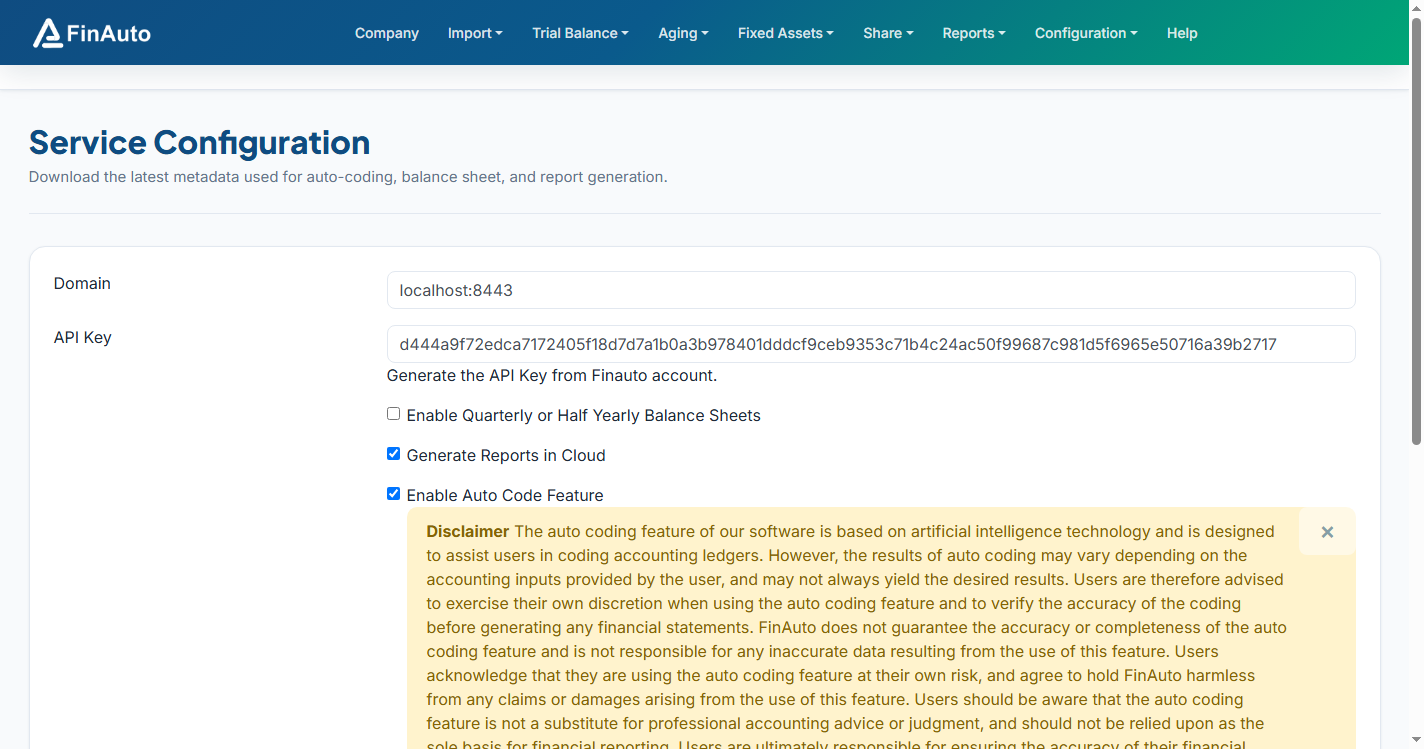
Screenshot: FinAuto Client v9.0 — Configuration → Service with FinAuto Demo company selected
Related links
Troubleshooting
| Symptom | Likely cause | Resolution |
|---|---|---|
| "Username and/or password is not valid" | Expired or replaced API key | Generate a new key in the cloud portal; click Update here |
| Auto-code or reports misbehave after upgrade | Stale metadata | Click Update on this page to refresh rules |
| Update shows connection errors | Network or domain mismatch | Verify internet access and domain value with support |
See also Common issues.
Need more help? Contact support@finautoindia.com. Do not share API keys or PAN in email.