Aging report
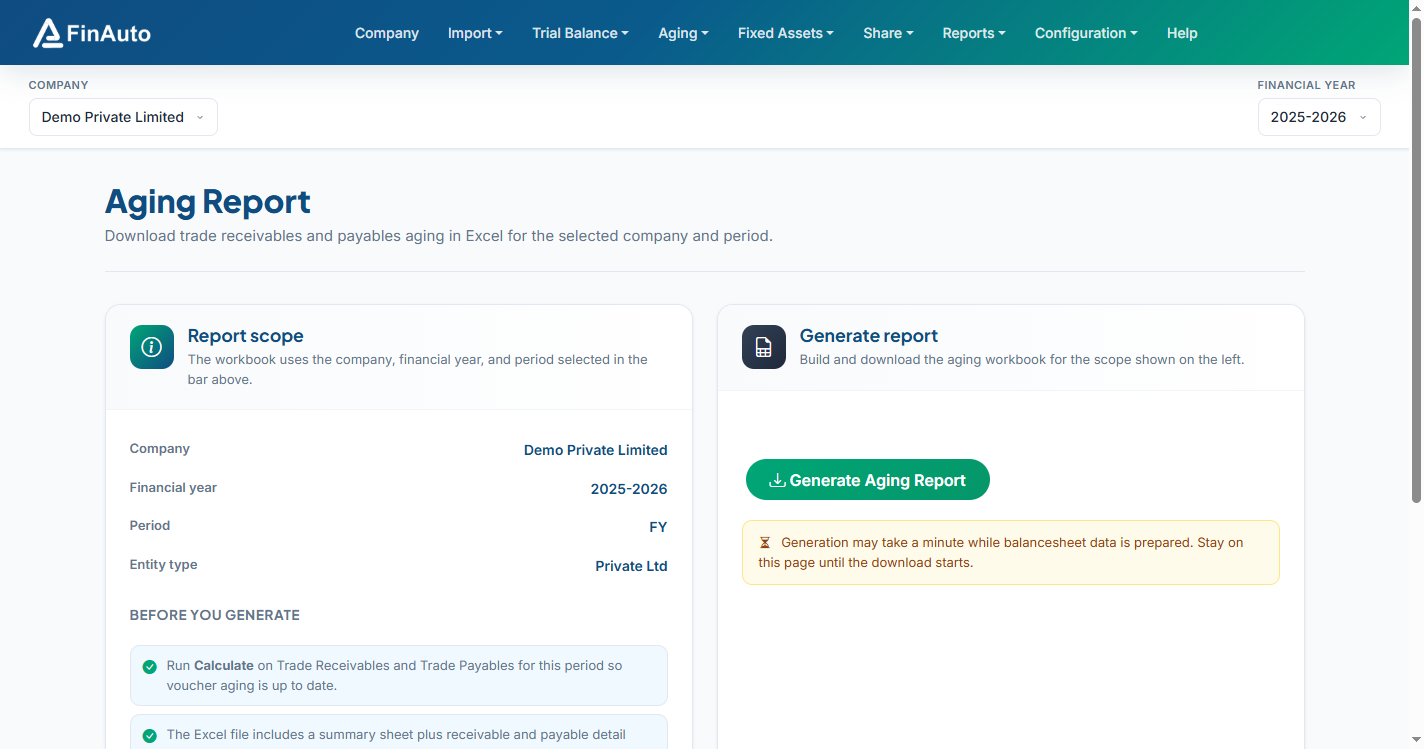
Generate and download an Excel workbook with trade receivables and payables aging for the company, financial year, and period selected in the top bar.
Prerequisites
- Voucher data imported (Aging vouchers or Tally import with Import Data for Aging enabled)
- Calculate run on Trade receivables and Trade payables for the current period
- Company, FY, and period set in the company bar
Steps
Step 1: Review report scope
- Go to Aging → Aging Report.
- Confirm Company, Financial year, Period, and Entity type on the left card match your intent.
Step 2: Update aging data (if needed)
- Open Trade Receivables, Trade Payables, or Aging Vouchers from the quick links if balances are stale.
- Run Calculate on receivables and payables grids before generating.
Step 3: Generate Excel
- Click Generate Aging Report on the right card.
- Stay on the page until the download starts (generation may take up to a minute while balance sheet data is prepared).
- Open the workbook: Summary sheet plus Trade Receivables and Trade Payables detail sheets when data exists.
Template format
The Excel template depends on entity type (company vs other). The summary sheet lists company name, status, period, and FY end date.
Related links
Troubleshooting
| Symptom | Likely cause | Resolution |
|---|---|---|
| Error on generate | Balance sheet prep failed | Check service connection; retry after Calculate on aging grids |
| Empty detail sheets | No rows for period | Import vouchers; verify FY and period in company bar |
| Download stalls | Large dataset | Wait up to 2 minutes; do not navigate away during generation |
| Prior-year balances wrong | Missing prior FY vouchers | Import previous year data for multi-year outstanding items |
See also Common issues.
Need more help? Contact support@finautoindia.com. Do not share API keys or PAN in email.