Import from Tally
Pull ledgers, stock items, fixed assets, aging vouchers, and related data from Tally into the selected company and financial year.
Prerequisites
- Tally configured with ODBC on port 9000
tcodes.tcpplugin installed (Installation)- Correct company and financial year selected in the client bar
- Tally open with the matching company and period
Steps
Step 1: Prepare Tally
- Open Tally and load the company you want to import.
- Set the period to match the client financial year.
Step 2: Open import screen
- Go to Import → From Tally.
- Read the Instructions card on the left.
Step 3: Select data and import
- In the Import card, tick the data types to import (ledgers, stock, fixed assets, aging, etc.).
- Click Import from Tally.
- Wait until the progress message completes — do not close the page during import.
Destructive import for ledgers and stock
For the selected FY, existing ledger and stock records are deleted before import. Fixed assets and aging records update when external IDs match.
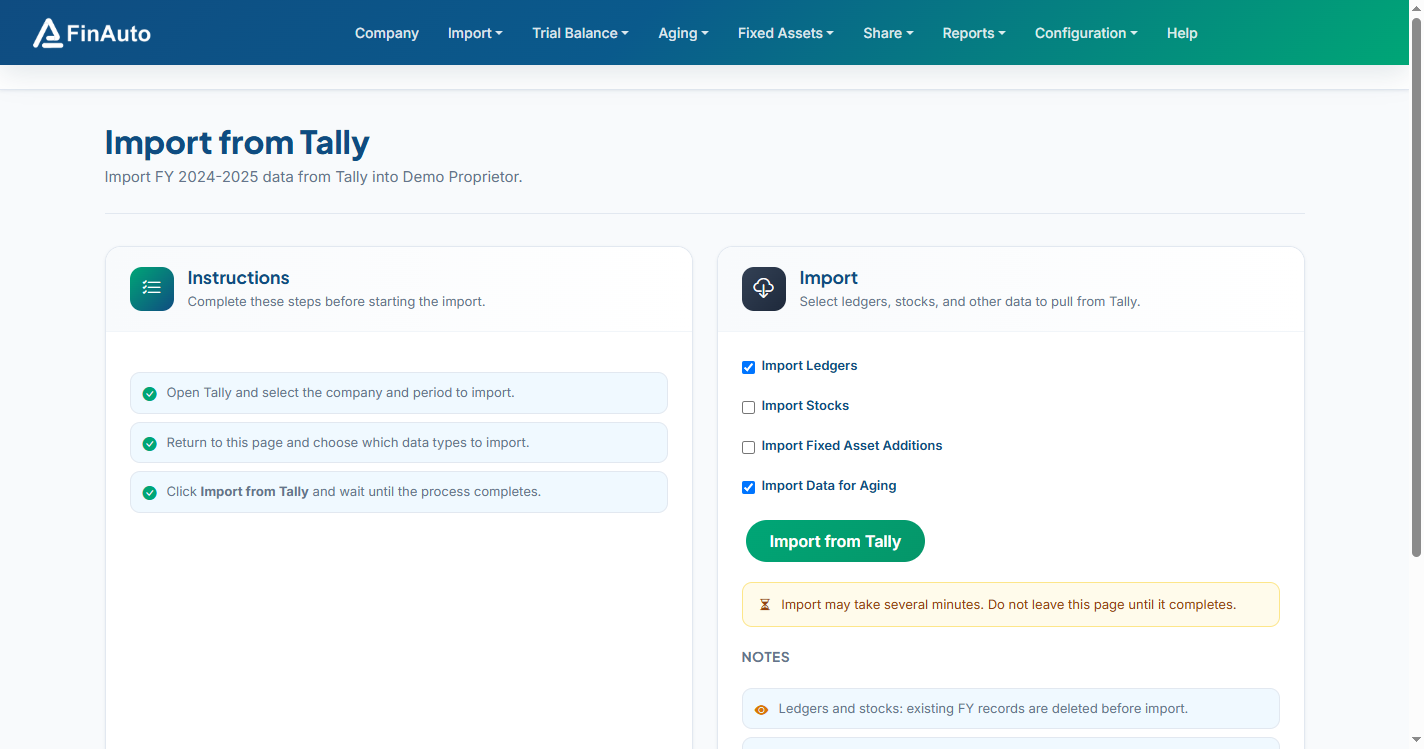
Screenshot: FinAuto Client v9.0 — Import → From Tally
Related links
Troubleshooting
| Symptom | Likely cause | Resolution |
|---|---|---|
| Connection error port 9000 | Tally ODBC off or Tally closed | Enable ODBC; keep Tally running |
| Income tax number not set | PAN missing in Tally | Configure PAN in Tally company features |
| Import hangs | Large data volume | Wait; check Tally company is responsive |
See also Common issues.
Need more help? Contact support@finautoindia.com. Do not share API keys or PAN in email.