Manage Company
Create companies, set PAN and depreciation method, and manage branches, financial years, and exports from the company grid.
Prerequisites
- Service configuration completed (Configuration → Service)
- User logged into FinAuto Client
Steps
Step 1: Open the company grid
- Click Company in the main menu (or open Company → Manage Companies).
- Review the Manage Company page header and company selector in the top bar.
Step 2: Add a company
- Click Add (or the add icon) in the grid toolbar.
- Enter company details:
- Display name and legal company name
- Income tax number (PAN) — required for Tally import
- Depreciation method (SLM or WDV)
- CA profile (optional; create under CA Profiles)
- Save the record.
Deleting a company
Deleting a company removes all data (ledgers, stock, etc.) for all financial years. Confirm carefully before delete.
Step 3: Select active company and FY
Use the company and financial year dropdowns in the top bar before importing or generating reports.
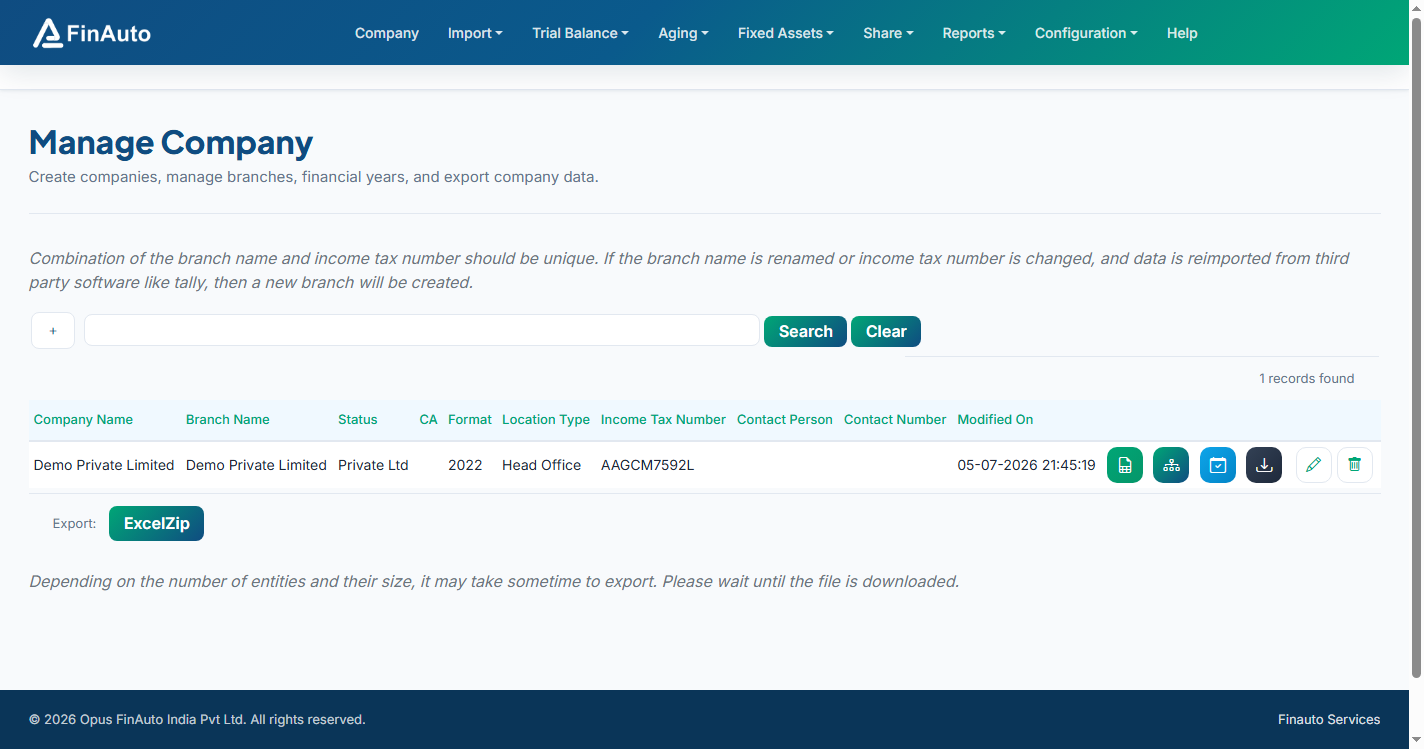
Screenshot: FinAuto Client v9.0 — Manage Company grid
Related links
Troubleshooting
| Symptom | Likely cause | Resolution |
|---|---|---|
| Duplicate branch after Tally re-import | PAN or branch name changed | Keep PAN consistent; see note on unique branch + PAN on this page |
| PAN missing in Tally import | PAN not set in Tally | Set PAN under Tally F11 → Features → More Details |
| Cannot delete company | Active sessions or locked FY | Close other users; unlock FY if needed |
See also Common issues.
Need more help? Contact support@finautoindia.com. Do not share API keys or PAN in email.