Import from Excel
Upload FY workbook data or a full company export package for the selected company and financial year.
Prerequisites
- Company and financial year selected
- Excel templates exported from the relevant modules or sample files from your cloud dashboard
Steps
Step 1: Open Excel import
- Go to Import → From Excel.
- Review FY data import and Company package import cards.
Step 2: Import FY workbook
- Under FY data import, confirm company and FY in the context selector.
- Choose the Excel file exported from ledgers, stock, or other modules.
- Submit the form and wait for validation messages.
Locked financial years
If a financial year is locked for a company, import for that FY is skipped.
Step 3: Import company package (optional)
Use Company package import for zip or Excel exports containing company setup and branch data.
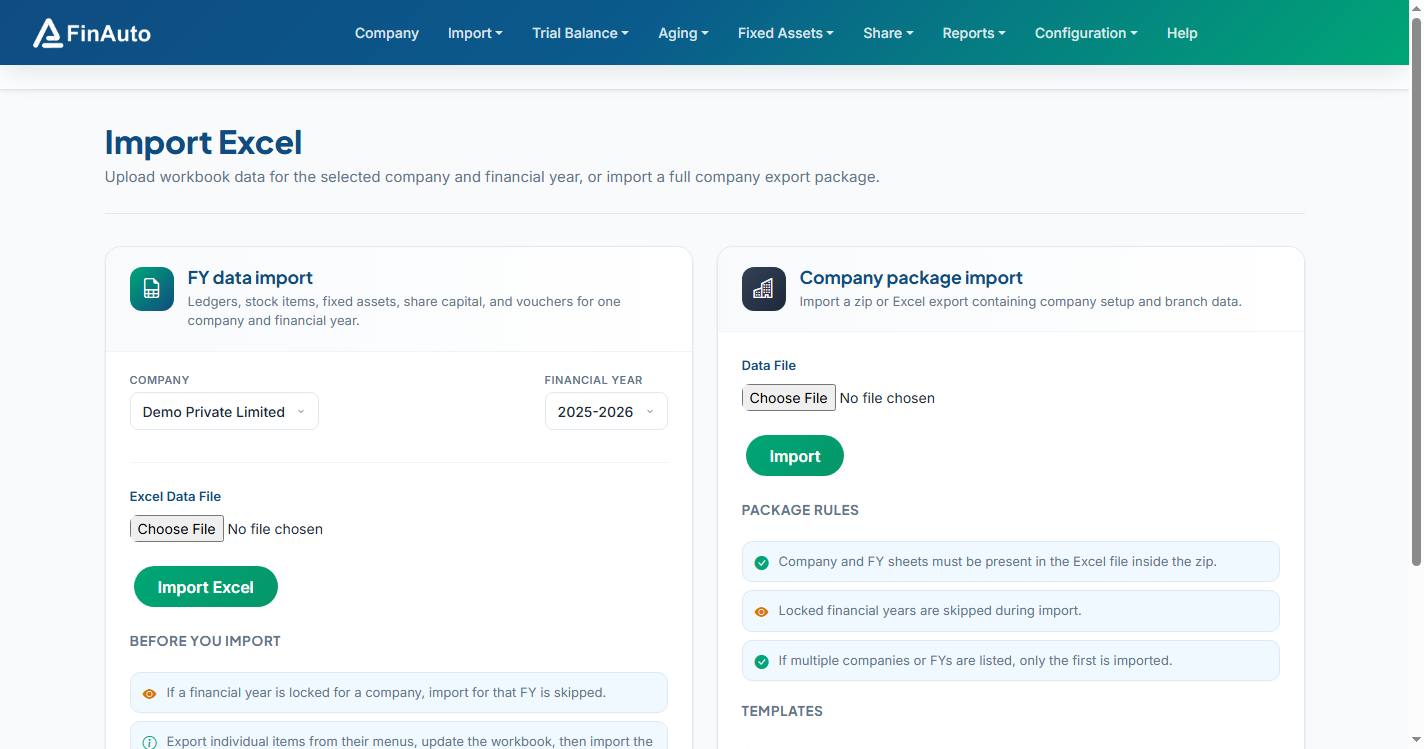
Screenshot: FinAuto Client v9.0 — Import → From Excel
Related links
Troubleshooting
| Symptom | Likely cause | Resolution |
|---|---|---|
| Import skipped for FY | FY locked | Unlock FY or choose another year |
| Validation errors listed | Template mismatch | Re-export template from the same module version |
| Empty data after import | Wrong company/FY selected | Check top bar selectors |
See also Common issues.
Need more help? Contact support@finautoindia.com. Do not share API keys or PAN in email.