Branches
Link branch companies to a headquarters entity so consolidated reporting and balance sheet generation treat them as one income-tax group.
Prerequisites
- Headquarters company created on Manage company with location type set to headquarters
- Branch companies share the same income tax number (PAN) as the headquarters
- Branch records exist as separate companies in the grid
Steps
Step 1: Open branch management
- Go to Company → Manage Companies.
- On the headquarters row, click the Manage Branches icon ().
- Confirm the page header shows Branches for the selected headquarters.
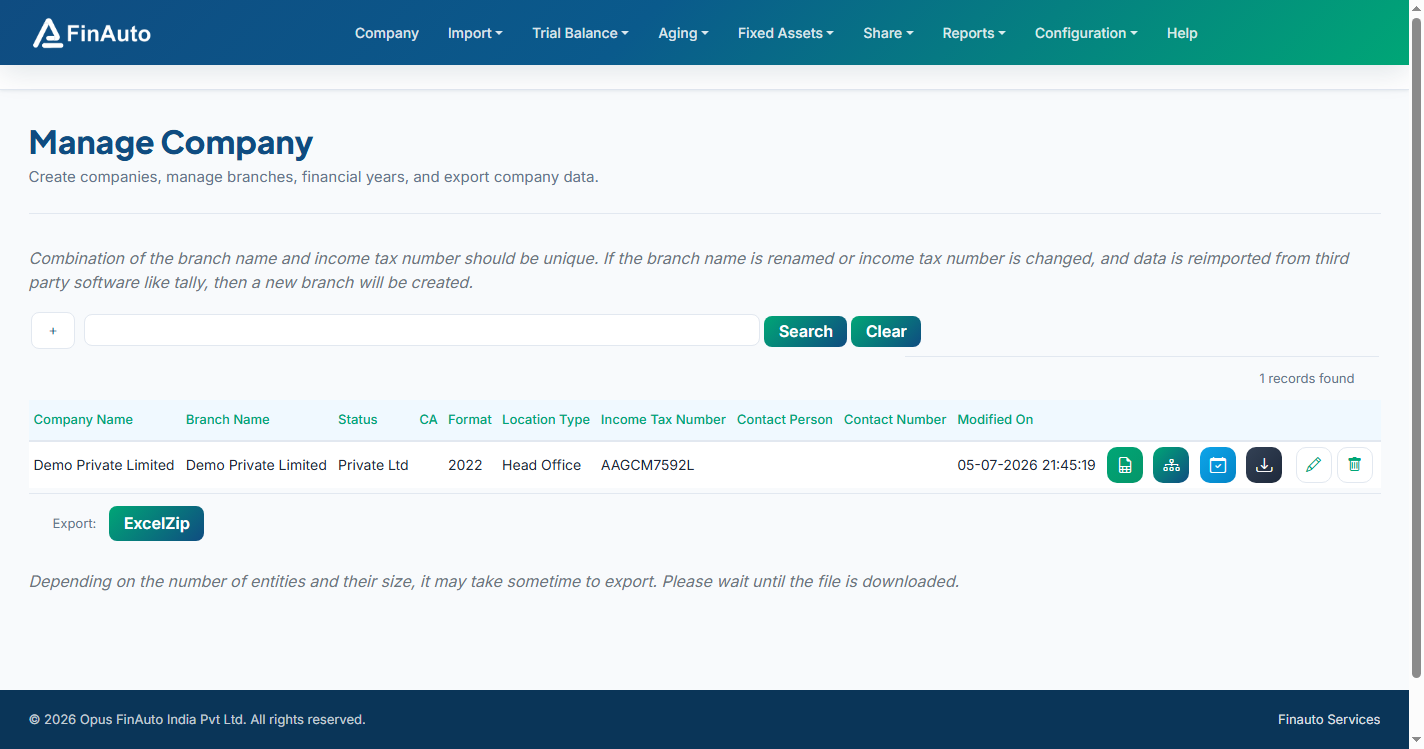
Step 2: Add branches
- Click Add in the branches grid.
- Select a branch company from the autocomplete list (only companies with matching PAN and non-headquarters location type appear).
- Save the link.
Step 3: Export branch data
- Use Export on the company grid when you need a full company package.
- Generate consolidated statements from Balance sheet after branch data is imported for the same financial year.
Related links
Troubleshooting
| Symptom | Likely cause | Resolution |
|---|---|---|
| "Could not find any applicable branch" | PAN mismatch or no branch companies | Ensure branch companies use the same PAN as HQ and are not marked headquarters |
| Manage Branches icon missing | Row is not headquarters | Only headquarters location type shows the branches action |
| Consolidated BS incomplete | Branch FY data not imported | Import each branch for the same FY before generating |
See also Common issues.
Need more help? Contact support@finautoindia.com. Do not share API keys or PAN in email.